Print, Reprint or Download Nadakacheri Certificate Online 2026
Your Nadakacheri certificate is approved. Now what? You can print, reprint or download your Nadakacheri certificate online from home in just a few minutes. Whether you need a Nadakacheri caste certificate download, Nadakacheri income certificate download, domicile certificate or any other type, the process is the same. No need to visit the Taluk office. No need to ask anyone for help.
This guide covers everything. How to do the Nadakacheri print certificate for the first time, how to do the Nadakacheri reprint certificate if you need another copy, how to download without logging in, how to get it from DigiLocker, what to do if something goes wrong, and more. Everything is explained in easy, simple steps.
Know the Difference
Print vs Reprint: What is the Difference?
Many people get confused between Print and Reprint on Nadakacheri. Here is the simple difference:
Print Certificate
This is for your first download after the certificate is approved. Use this only the first time.
Reprint Certificate
This is for getting another copy after you already downloaded it once. You need to pay Rs. 40 for each reprint.
Selecting the wrong option is the most common mistake. If you already downloaded once and try to use Print again, it will not work. Use Reprint instead.
Supported Types
What Certificates Can You Download?
You can print, reprint or do a Nadakacheri certificate download for all these certificate types:
- Caste Certificate (SC, ST)
- Income Certificate
- Caste and Income Certificate
- Domicile or Residence Certificate
- Rural Certificate
- OBC Certificate
- Minority Certificate
- Landholding Certificate
- Widow Certificate
- Family Tree Certificate (Vamshavruksha)
All these certificates are issued by Atalji Janasnehi Kendra (AJSK). They are digitally signed and valid everywhere in Karnataka.
Before You Start
Who Can Print or Reprint?
You can use the print or reprint option only if all these things are true:
If your application is still Pending, Under Process or Rejected, the print option will not appear. Check your NK5 status first at ajsk.karnataka.gov.in/NK_Status before trying to print or download.
Method 1
Download Without Logging In (Easiest Way)
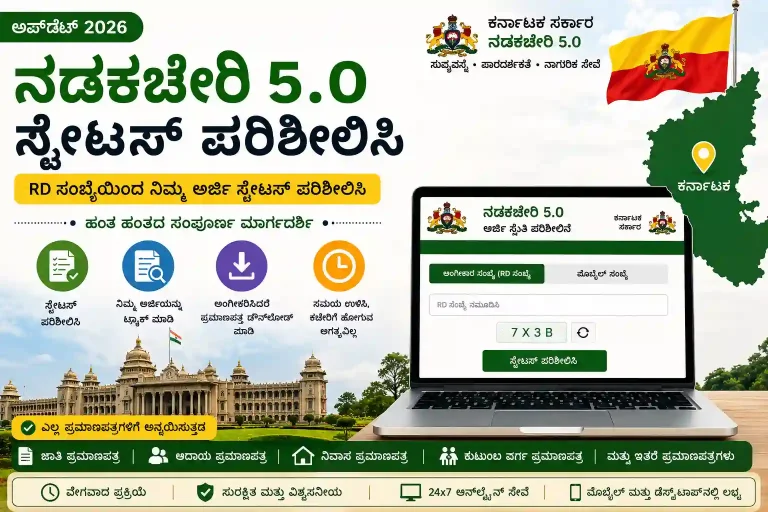
This is the easiest and fastest way to do a Nadakacheri certificate download or Nadakacheri status download. You do not need to log in at all.
- Go to ajsk.karnataka.gov.in/NK_Status
- Enter your RD Number
- Fill the CAPTCHA
- Click “Check Status”
- When status shows Approved, a Download button will appear
- Click Download and save the PDF
This is called the AJSK certificate download method. It works from any device, any browser, without logging in. Use this first before trying the login method.
Note: This method works only for the first download. For reprints, you must log in and pay the Rs. 40 fee.
Method 2
How to Print Certificate (First Time, With Login)
Use this method if the direct download above did not work for you.
Step 1: Go to the Official Website
Open your browser and go to ajsk.karnataka.gov.in. Make sure you are on the official government website.
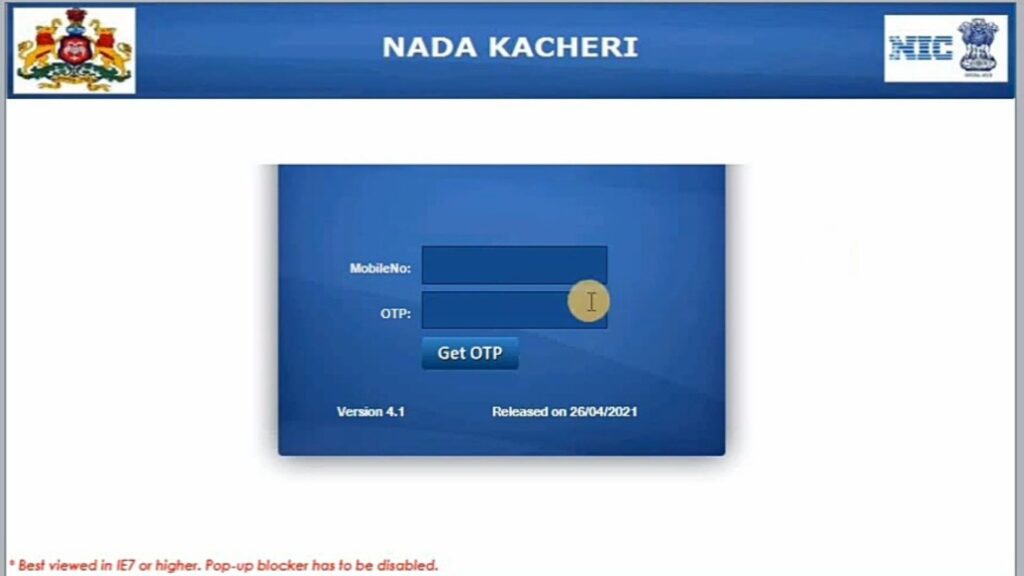
Step 2: Login
- Click “Apply Online” or “Login”
- Enter the mobile number you used when you applied
- Click “Get OTP”
- Enter the OTP you receive on your phone
No password is needed. The login uses OTP only.
Step 3: Open Print Certificate
- Go to the “Print” menu on the dashboard
- Click “Print Certificate”
- This option appears only if you have not downloaded the certificate before
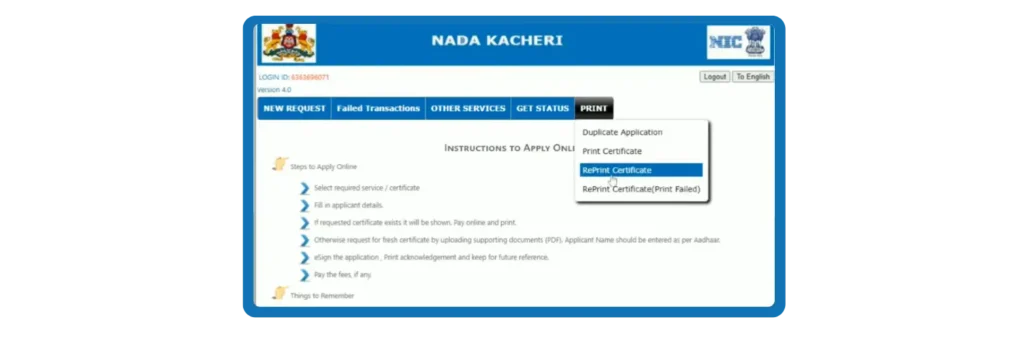
Step 4: Enter Your RD Number
- Type your RD Number carefully
- Click Search
- Your certificate details will appear
Step 5: Check Details Before Downloading
Before you click anything, read all the details on the screen carefully:
- Is your name spelled correctly?
- Is your address correct?
- Is the certificate type right?
- Is your father’s or husband’s name correct?
If anything is wrong, do not download yet. See the section below on how to get wrong details corrected.
Step 6: Download the Certificate
If everything is correct:
- Click Print or Download
- The certificate will open as a PDF
- Save it on your phone or computer
- Print it if you need a physical copy
If the PDF does not open, check if your browser is blocking pop-ups. See the Common Problems section below.
Method 3
How to Reprint Certificate (Duplicate Copy)
Use this if you already downloaded the certificate once and need another copy.
Step 1: Login
Go to ajsk.karnataka.gov.in and log in with your mobile number and OTP.
Step 2: Open Reprint Certificate
- Go to the “Print” menu
- Click “Reprint Certificate”
- Do not use “Print Certificate” here. It will not work.
Step 3: Enter RD Number
- Type your RD Number
- Click Search
Step 4: Preview Before Paying
- Check all the certificate details on the screen
- Tick the confirmation checkbox
- Click “Draft View” or “Preview”
- This shows you the certificate before payment
Step 5: Pay the Reprint Fee
- Click “Pay Service Fee”
- You will go to the SBI e-Pay payment page
- Pay Rs. 40 using UPI (PhonePe, Google Pay, Paytm), debit card, credit card or net banking
- Do not close or refresh the page while paying
Step 6: Download After Payment
- After payment, the Download or Print button becomes active
- Click it and save the PDF
- If the button does not appear, see the “Print Failed” section below
Troubleshooting
If Print Button is Not Showing (Print Failed)
Sometimes the download button does not appear even after payment. This is a common problem. Here is how to fix it:
- Look for a “Reprint (Print Failed)” option on the dashboard
- Click it and enter your RD Number again
- The system will let you download without paying again
- If still not working, try clearing your browser history and try again
- Or try a different browser like Chrome or Edge
- Allow pop-ups in your browser settings before clicking Download
If none of these work, visit your nearest Nadakacheri or AJSK center with your RD Number and payment receipt. They can help you get the certificate.
Method 4
Download from DigiLocker
If you chose to send your certificate to DigiLocker at the time of application, you can get it from there anytime. No RD Number needed. No payment needed.
- Open the DigiLocker app or go to digilocker.gov.in
- Log in with your mobile number and OTP
- Go to “Issued Documents”
- Find your Nadakacheri certificate
- Download or share it from there
The DigiLocker copy is fully valid. Colleges, employers and government offices accept it everywhere. You can show it directly on your phone without printing.
No Printer Needed
How to Share Your Certificate Without Printing
You do not always need to print the certificate. You can share it digitally in these ways:
- Open the downloaded PDF and send it by WhatsApp or email
- Share the DigiLocker link directly from the app
- Show the PDF on your phone screen when asked (most offices accept this)
- Upload the PDF directly to online application forms for jobs, college or scholarships
Sharing digitally is faster and saves paper. The digital copy is just as valid as the printed one.
Valid Everywhere
What Does “Digitally Signed” Mean?
All certificates downloaded from Nadakacheri are digitally signed. Many people worry that a downloaded certificate is not valid because it has no physical stamp or ink signature. This is not true.
A digital signature is a type of electronic stamp. It is added by the Tahsildar or the officer who approved your certificate. It is secured by the Government of Karnataka. Anyone can verify it online using the CV portal.
A digitally signed Nadakacheri certificate is:
- Legally valid across Karnataka and India
- Accepted for college admissions, scholarships, government jobs and court cases
- Tamper proof, which means no one can change it without being detected
- Verifiable by any college, employer or government office online
Verification
How to Verify Your Certificate After Download
After you download your certificate, you can verify it online. This is called CV (Certificate Verification). Colleges and employers can also verify your certificate using this.
- Go to ajsk.karnataka.gov.in
- Click on “Certificate Verification” or “CV”
- Enter the RD Number from your certificate
- The system will show the original certificate details
If the details match what is on your certificate, it is genuine. If they do not match, contact your nearest Nadakacheri center immediately.
Important Warning
If Wrong Details Are on the Certificate
Sometimes the certificate is approved but has a spelling mistake in the name, wrong address or wrong caste. Do not download and submit a wrong certificate. It will be rejected and cause more problems.
Here is what to do:
- Do not click Print or Download yet
- Visit your nearest Taluk office or Nadakacheri center
- Show them your application and the wrong detail
- They will ask for supporting documents to prove the correct information
- After correction, the certificate will be reissued
- Then you can download the corrected certificate
Always check all details carefully before you download.
Fixes
Common Problems and Easy Solutions
- Certificate not in Print stage: Either the certificate is not yet approved, or it was already printed. Check the status first. If already printed, use Reprint.
- Print button not visible after login: Make sure your browser allows pop-ups. In Chrome, click the small icon in the address bar and allow pop-ups. In Firefox, go to Settings and allow pop-ups for this site.
- Wrong mobile number at login: You must use the same mobile number you entered when you applied. OTP goes to your Aadhaar-linked number. If it has changed, update it in Aadhaar first.
- Payment failed or timed out: Use a stable internet connection. Try UPI first. If UPI fails, try a debit card or net banking. Enter the exact amount shown on the page.
- Download button not active after payment: Use the “Reprint (Print Failed)” option. Enter your RD Number again. If not visible, clear browser history and try again.
- PDF not opening: Make sure you have a PDF reader on your phone or computer. Google Chrome can open PDFs directly. Or download a free PDF reader app.
- Certificate showing wrong details after download: Do not use it. Visit your Taluk office for correction before submitting anywhere.
- Printer not working: Save the PDF file first. Then open it in a PDF reader and print from there. Make sure your printer is connected and has paper.
Charges
Service Fee Details
- First download (Print): Free for most certificate types
- Reprint (duplicate copy): Rs. 40 per certificate
- Payment options: UPI, PhonePe, Google Pay, Paytm, debit card, credit card, net banking
- Payment gateway: SBI e-Pay
The Rs. 40 reprint fee is the same for all certificate types. Income certificate, caste certificate, domicile certificate, family tree certificate and all others cost the same to reprint.
Expiry Check
Check Validity Before Submitting
Before you print and submit your certificate somewhere, check the expiry date on the certificate. Submitting an expired certificate to a college or employer will lead to rejection.
Income Certificate
Valid for 1 year from the date of issue.
Caste Certificate (SC/ST)
Valid for lifetime, no expiry.
OBC Certificate
Valid for 1 year.
Domicile Certificate
Valid for lifetime in most cases.
If your certificate is expired, apply for renewal on Nadakacheri before submitting it.
Stay Safe
Safety Tips
- Keep your RD Number private. Do not share it with strangers. Anyone with your RD Number can access your certificate details.
- Always use the official website nadakacheri.karnataka.gov.in or ajsk.karnataka.gov.in. Do not use any third-party website.
- Never pay anyone in cash to get your certificate. The process is free or costs Rs. 40 maximum online.
- If you see wrong details on your downloaded certificate, contact your Taluk office immediately. Do not try to edit the PDF.
- Beware of fake apps on the Play Store claiming to download Nadakacheri certificates. There is no official Nadakacheri app.
Get Help
Helpline
If you face any problem with printing, reprinting or downloading your certificate, contact:
- Helpline: 080-4455-4455
- Toll-Free: 1800-425-1243 (free to call from any phone)
- Other Number: 080-22214588
- Email: [email protected]
- Days: Monday to Saturday
- Time: 10:00 AM to 5:30 PM
When you call, keep your RD Number ready. Tell them your name, certificate type and the problem you are facing.
Answers
Frequently Asked Questions
Wrapping Up
Conclusion
Printing, reprinting or downloading your Nadakacheri certificate is simple and free for the first time. The easiest way is to go to ajsk.karnataka.gov.in/NK_Status, enter your RD Number and download directly without logging in.
If you need another copy, use the Reprint option and pay Rs. 40. Always check certificate details before downloading. Save your RD Number safely. If something goes wrong, use the helpline or visit your nearest AJSK center.
Your digital certificate is fully valid everywhere. You do not always need to print it. Sharing the PDF is enough in most cases.